

We have split chatbot creation into two clear paths so you can pick the right level of compliance for the job. Existing chatbots in your account are unchanged. They continue to work exactly as before, and we have automatically classified them as General. Nothing you have today needs migration.
What's New
When you create a new chatbot, you will now see a one-time choice between two agent types:
General Agent — the chatbot you have been building all along. Full feature set, works for any domain (sales, support, HR, education, marketing, real estate), no compliance overhead.
Medical Agent — a HIPAA-aware chatbot built for clinical and healthcare teams. Includes everything a General Agent has, plus medical-specific modules (Parameters, Medications, Prescriptions), HIPAA-eligible language models, and per-field encryption for sensitive contact data.
You make the choice once, at the moment you create the chatbot. The agent type can not be changed later, so pick deliberately.
When to Choose Medical
Choose Medical if your chatbot will:
Handle Protected Health Information (PHI) — patient records, prescriptions, conditions, medications.
Power a clinical workflow — symptom intake, triage, follow-ups, prescription refills, lab-result conversations.
Be deployed publicly to patients — this requires a signed Business Associate Agreement (see below).
Choose General for everything else.
Creating a Medical Agent Step by Step
Step 1. From the dashboard, click + New Agent. The agent-type chooser appears.
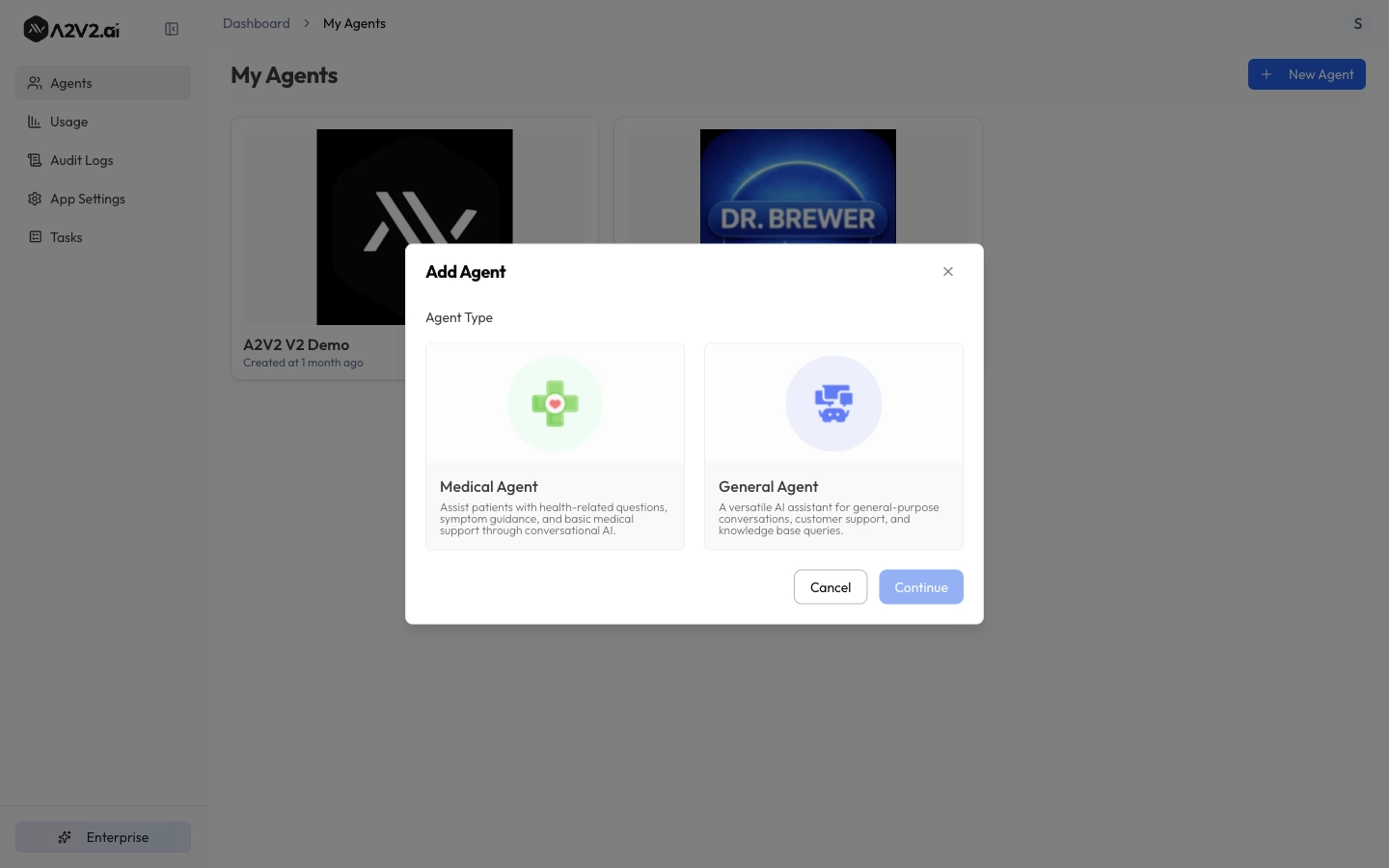
New Agent — type selection
Step 2. Pick Medical Agent. If your organisation has not completed a BAA yet, an acknowledgment checkbox appears confirming the BAA requirement. Tick it to proceed.
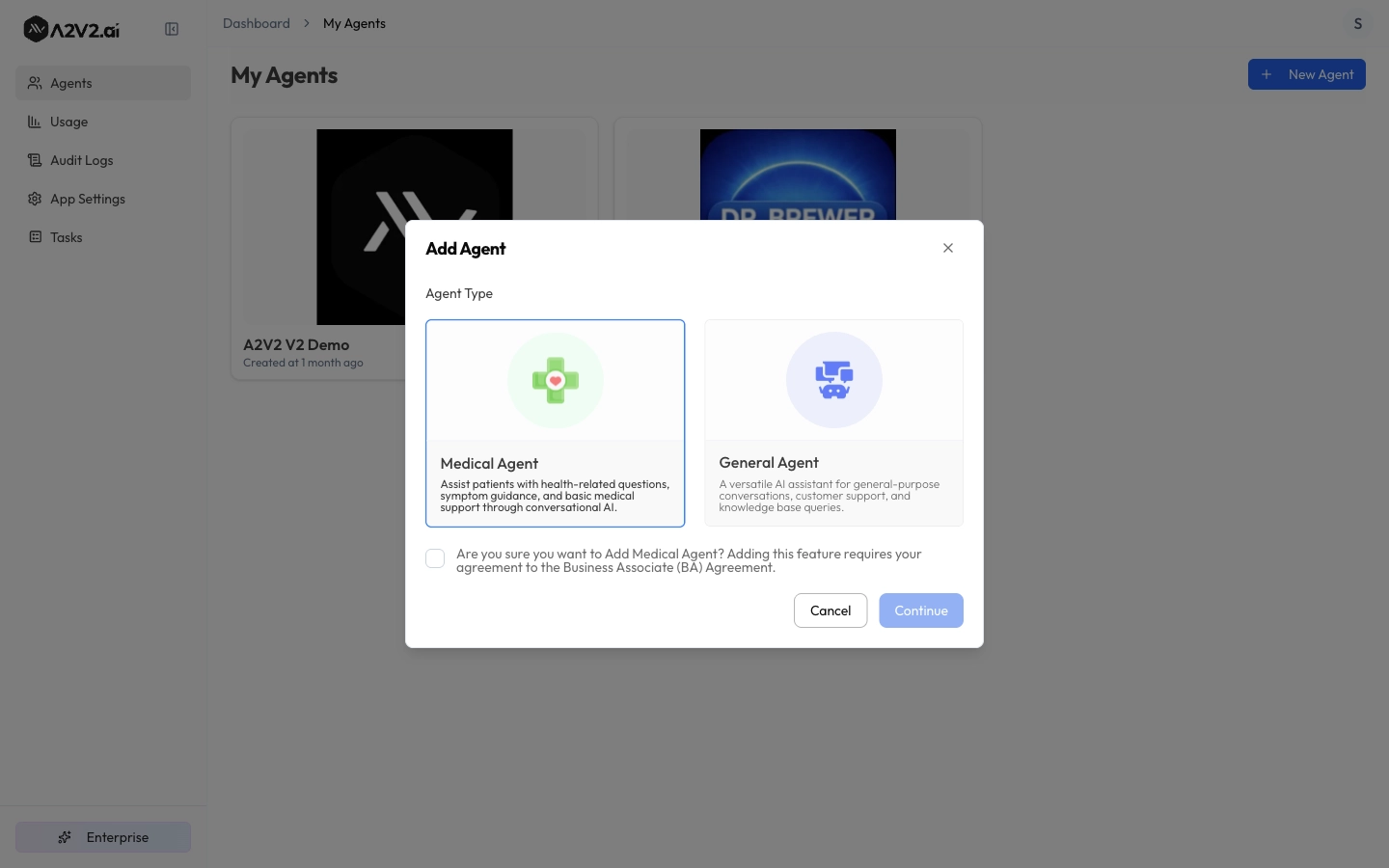
Medical Agent — BAA acknowledgment step
Step 3. Name your agent and click Create. That is it. Your Medical Agent is ready.
Step 4. Inside the new chatbot, the sidebar reflects its Medical type. You will see two new entries under CRM (Parameters and Medications) and a BAA Agreement badge in the bottom-left footer showing your current status (Not Signed, In Progress, or Active). The Sandbox model picker is also pre-set to a HIPAA-eligible model with a HIPAA badge.
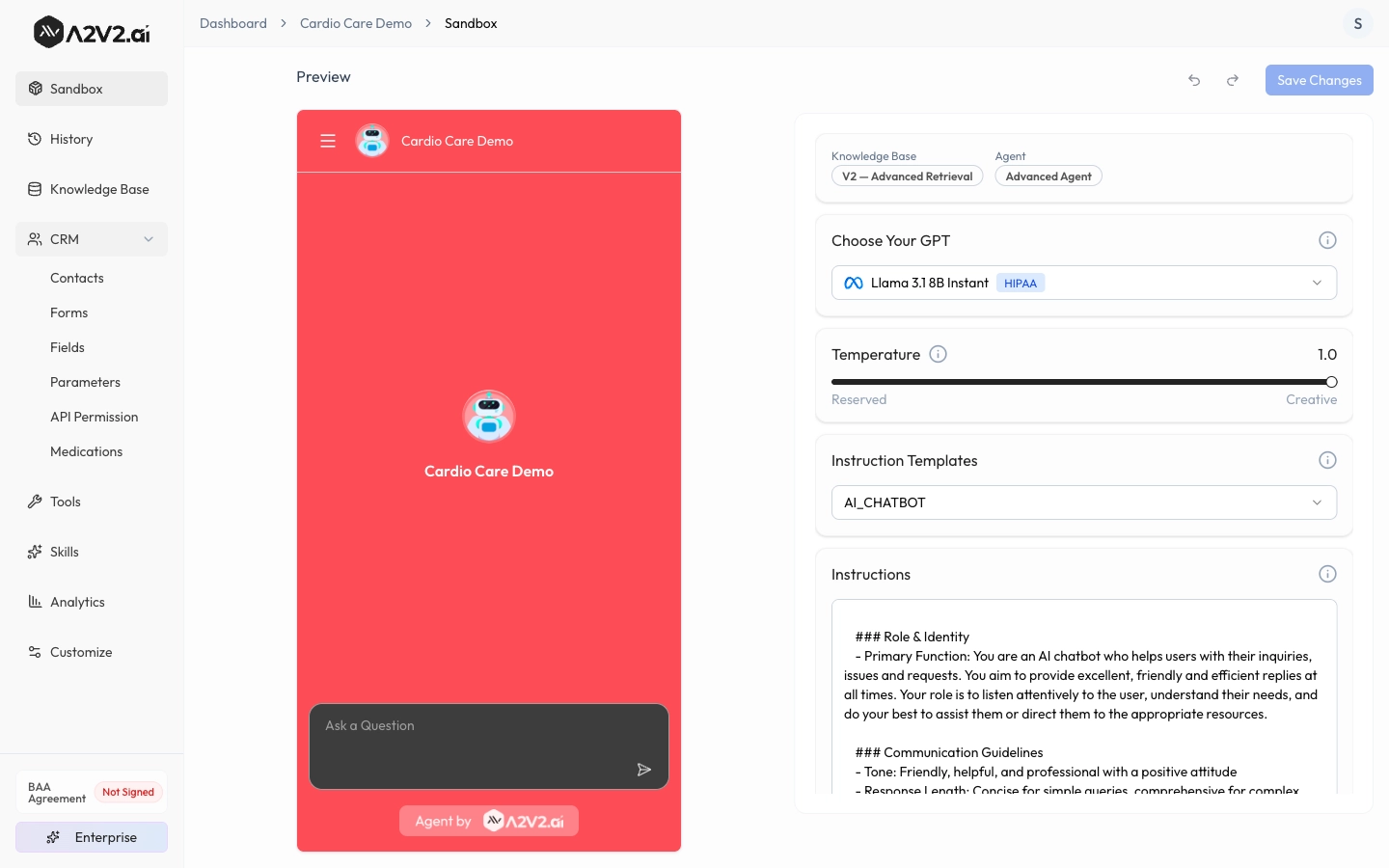
Medical chatbot sidebar — BAA badge, CRM modules, HIPAA model
About the Business Associate Agreement (BAA)
A BAA is the agreement that lets A2V2 process PHI on your behalf in a HIPAA-compliant manner. You only need one per organisation, not per chatbot.
How to get one signed: when you create your first Medical Agent and tick the acknowledgment, our compliance team is automatically notified. Someone from A2V2 will reach out to walk you through the agreement and finalise signing. There is no self-service signing inside the dashboard today. Once it is signed and recorded on our side, your BAA badge flips to Active and your Medical Agents can be published.
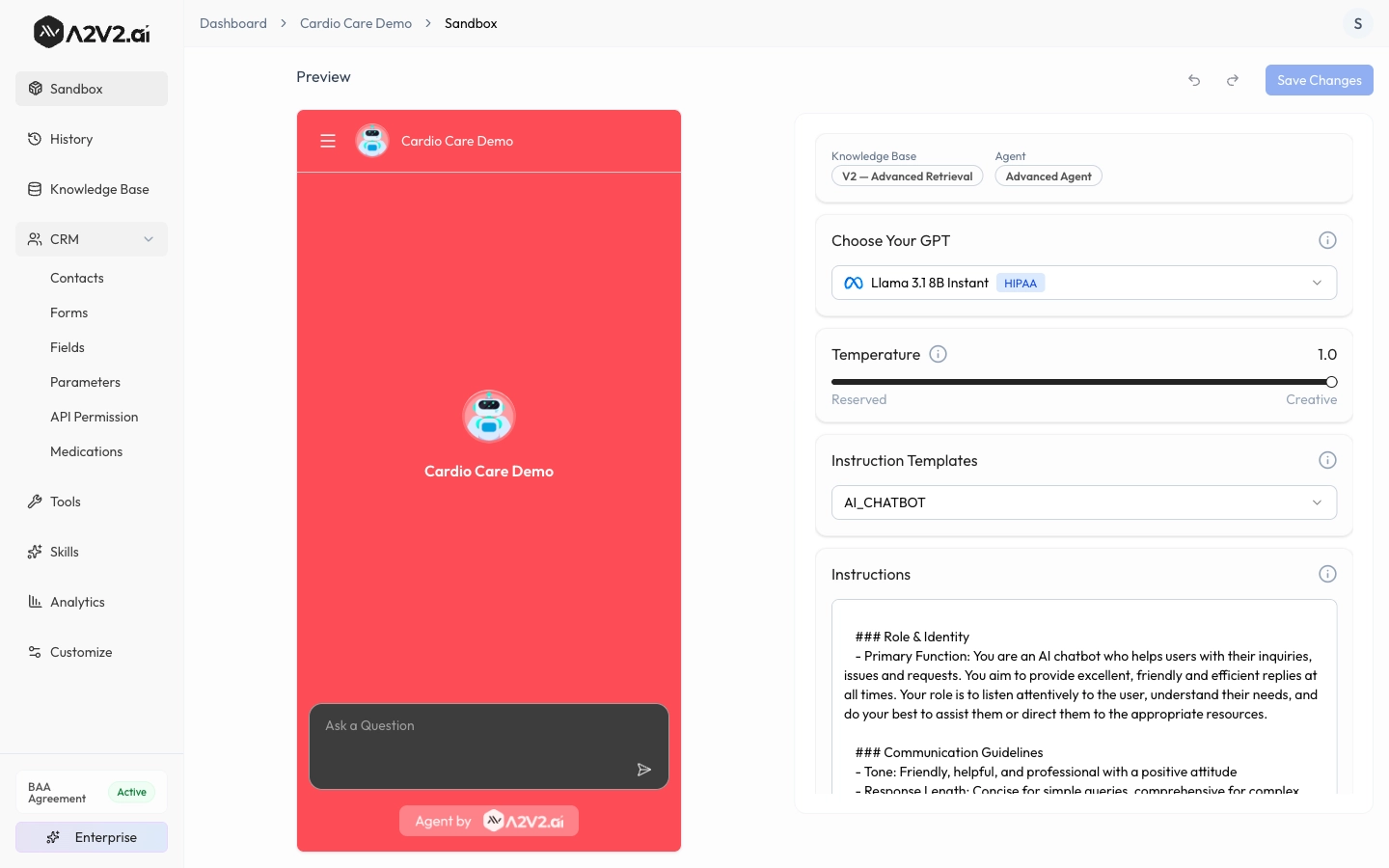
Medical chatbot sidebar — BAA Active
If you would rather kick off a BAA before creating an agent, email support@a2v2.ai and we will start the conversation.
Going Live with a Medical Agent
When a Medical Agent's BAA is still Not Signed or In Progress, you can build, test, and use it internally. What you can not do is make it public to your end users until the BAA is Active.
The publish dialog itself currently does not show the BAA status. If you click Publish on a Medical Agent before your BAA is Active, the platform will block the action with an error explaining that the BAA must be completed first. We are improving this dialog to surface BAA status inline. For now, glance at the BAA Agreement badge in your chatbot sidebar before clicking Publish.
Medical-Only Modules
Parameters (Health Metrics)
Each Medical Agent gets a default Health Parameters schema seeded at creation. Common vitals and clinical values your team likely tracks (Blood Pressure, Heart Rate, Body Temperature, Respiratory Rate, SpO2, BMI, HbA1c, Total Cholesterol, and more). You can extend it with custom fields under CRM, then Parameters, including unit categories, validation rules, and field types.
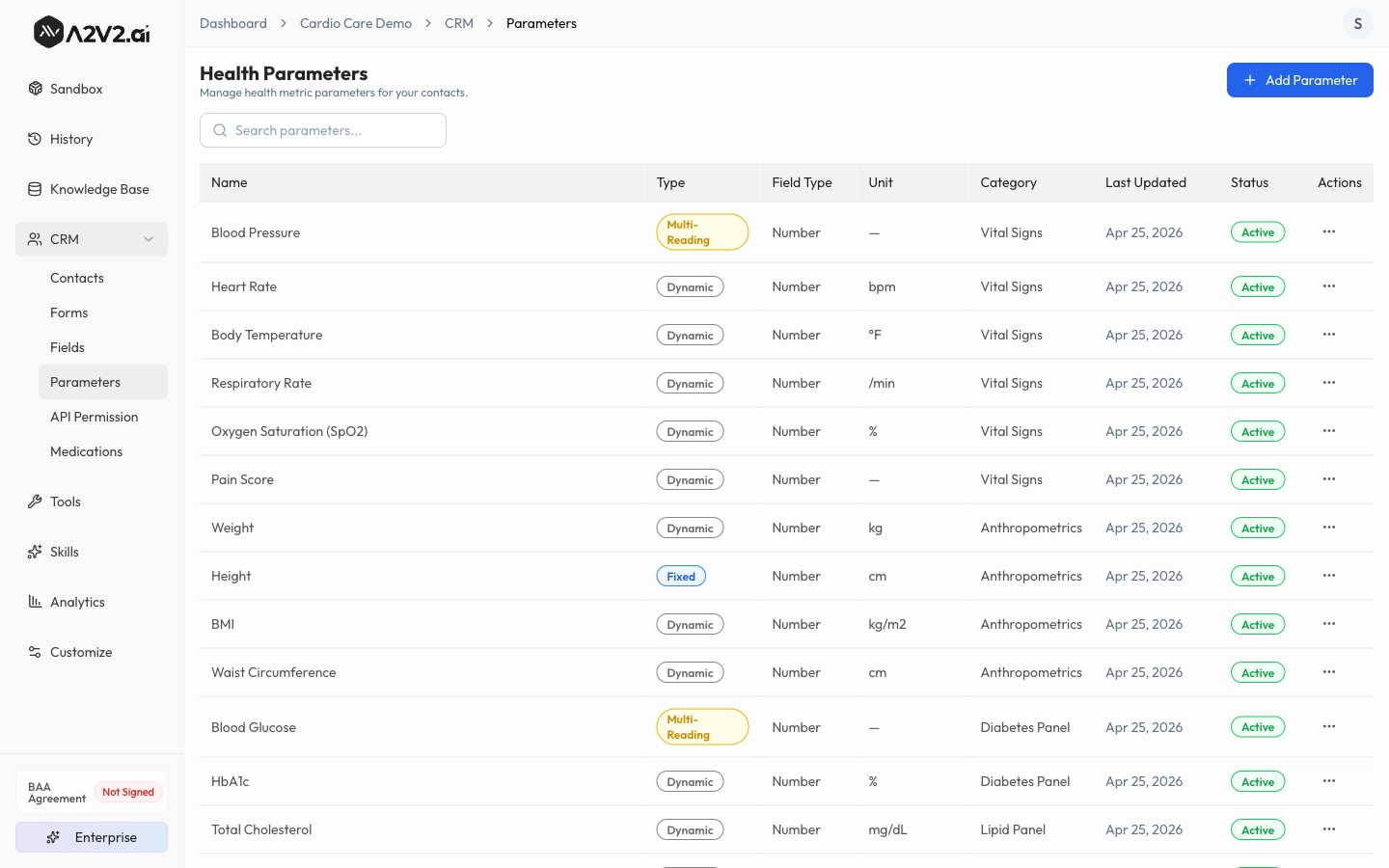
CRM — Parameters with seeded health metrics
Medications
The Medications catalog lives at the organisation level, not per-chatbot. All Medical Agents in your org share one catalog. Search, add, edit, and remove medicines under CRM, then Medications. Useful for dosage references, brand/generic mappings, and prescription building blocks.
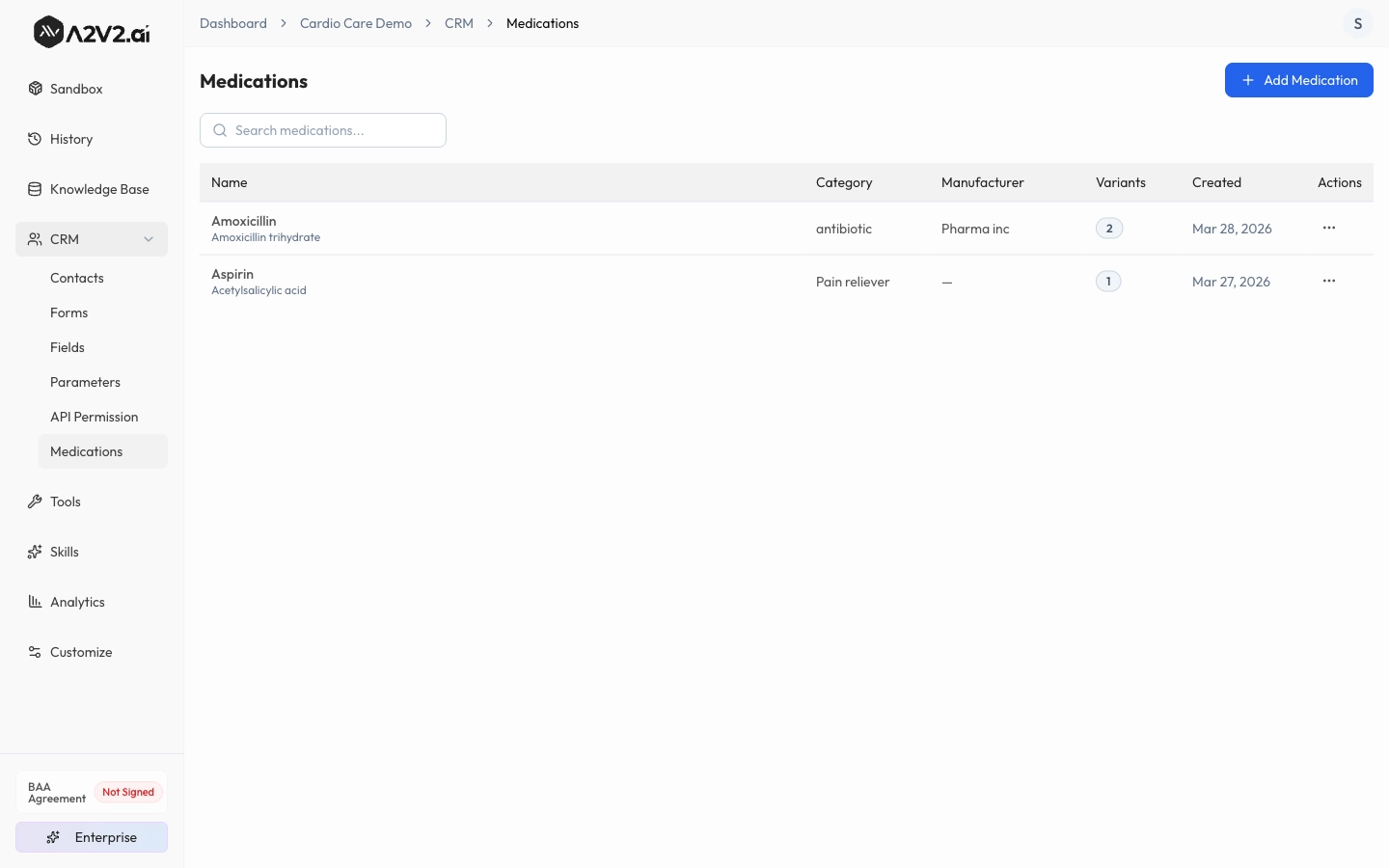
CRM — Medications catalog
Prescriptions
Prescriptions are available inside each contact's detail view in CRM. Open a contact, switch to the Prescriptions tab to view, create, and manage prescriptions for that individual. Each prescription captures the medication, dose/form, doses per day, duration, start date, timing instructions, and notes. The system computes a Runs Out date automatically.
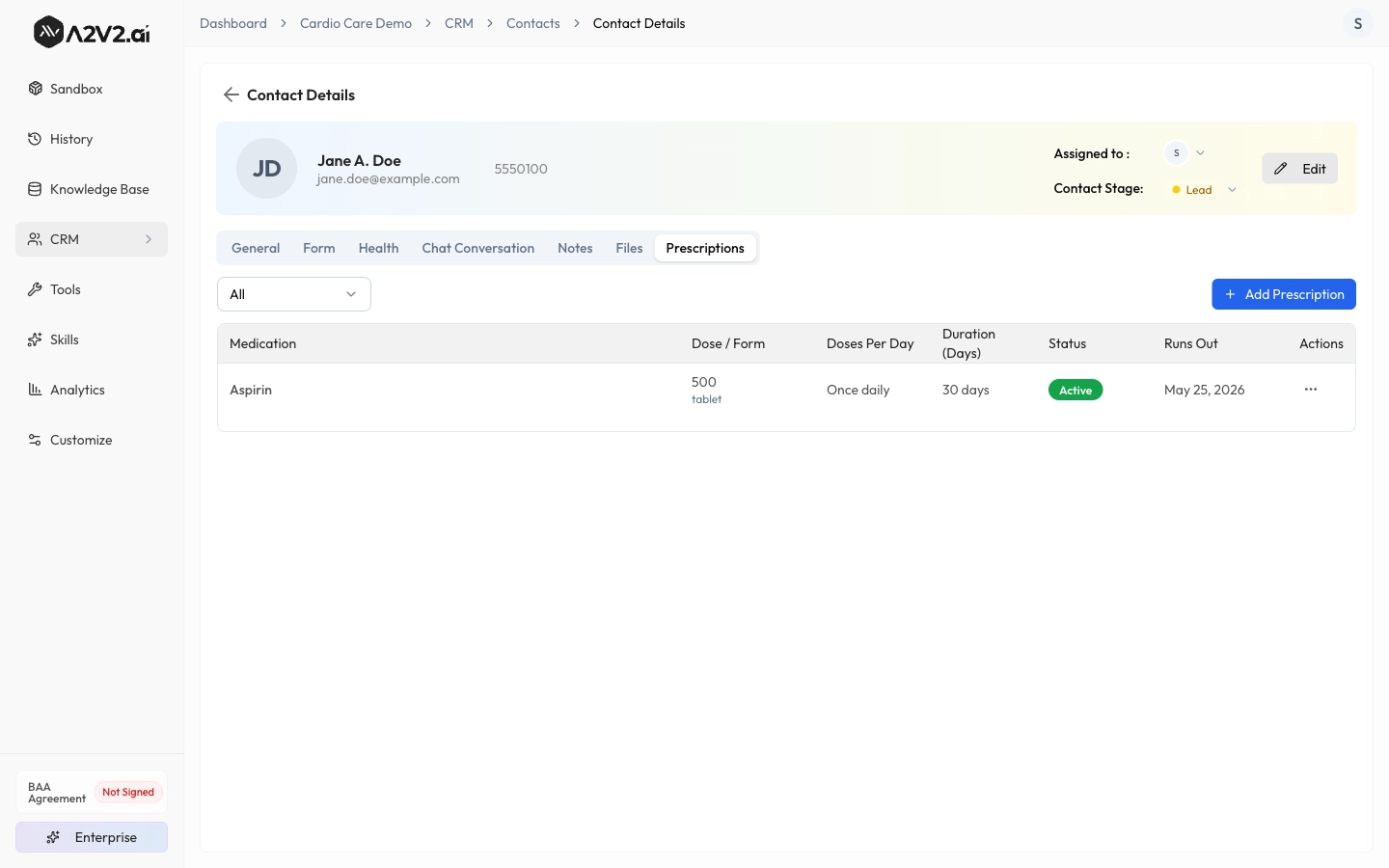
Contact — Prescriptions tab
Today there is not a single top-level Prescriptions screen aggregating everyone. If that is something you would find useful, let us know.
Document Extraction
Medical Agents can upload documents (lab reports, prescriptions, medical letters) and have them parsed into structured data your team can review and ingest into the contact record. The AI File Extraction button is available on the Add Health Reading form, so a fresh lab report can populate the contact's health metrics in one step.
Working with a Medical Contact
The Medical Agent's CRM extends the standard contact view with three medical-specific tabs: Health, Notes, and Prescriptions. Here is what each looks like in practice.
Contact overview (General tab): all the standard CRM fields are still there. Name, DOB, contact info, address, external reference ID for cross-referencing with your existing patient management system.
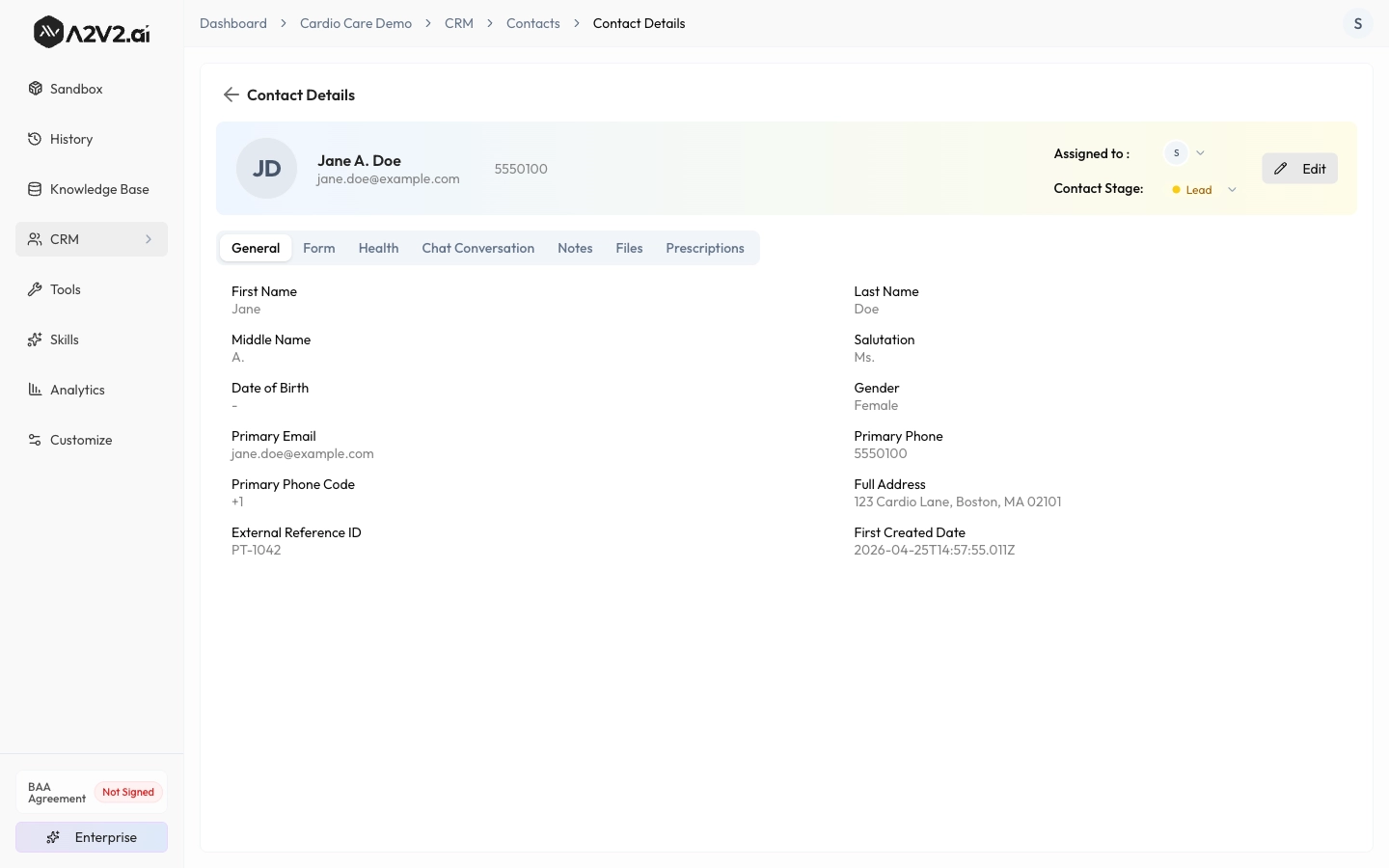
Contact details — General tab
Health tab: every reading you record (manually or from a parsed document) is timestamped, status-tagged (Normal / Abnormal / Critical based on your Parameter ranges), and click-through to history charts. Each reading also has a Source tag (Manual / AI Extraction / etc.) for audit traceability.
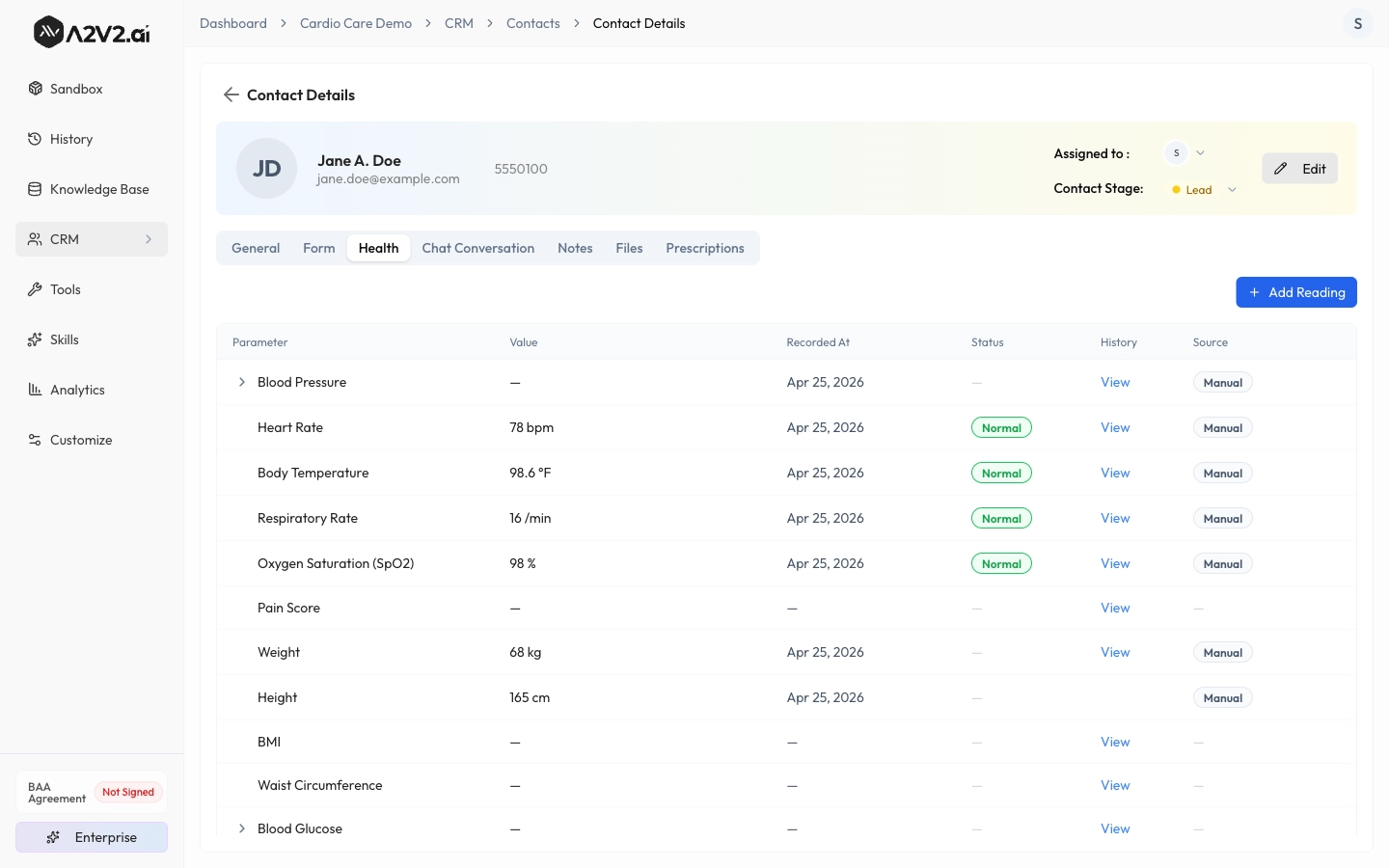
Contact — Health tab with recorded vitals
Notes tab: rich-text clinical notes attached to the contact. Supports headings, lists, links, and basic formatting. Each note is timestamped with author for audit.
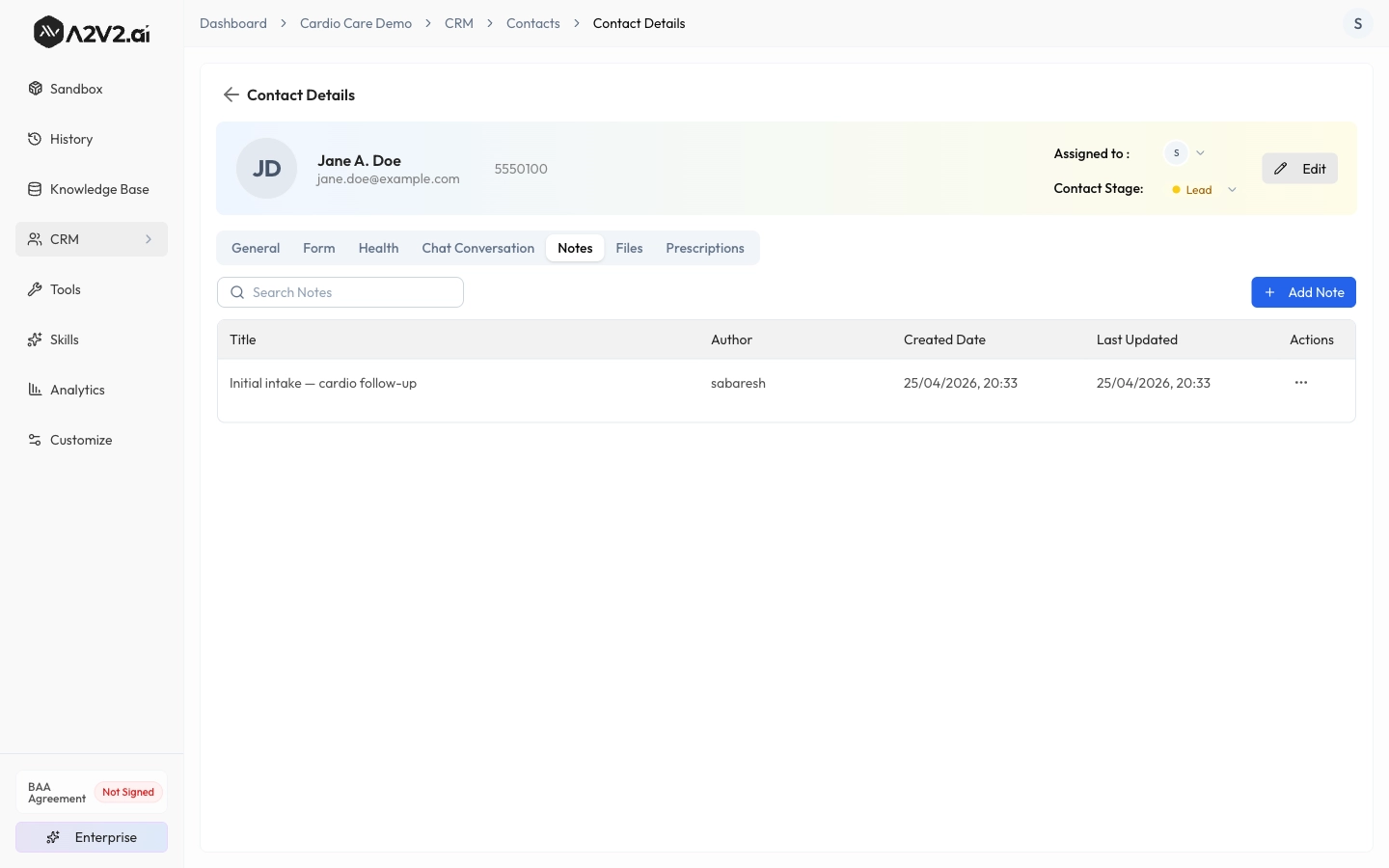
Contact — Notes tab
Adding a prescription: the prescription dialog autocompletes from your org's medicine catalog, auto-fills the medication's default Form and Dose, and lets you specify Doses Per Day, Duration, Total Quantity, Start Date, Timing Instructions, and Notes.
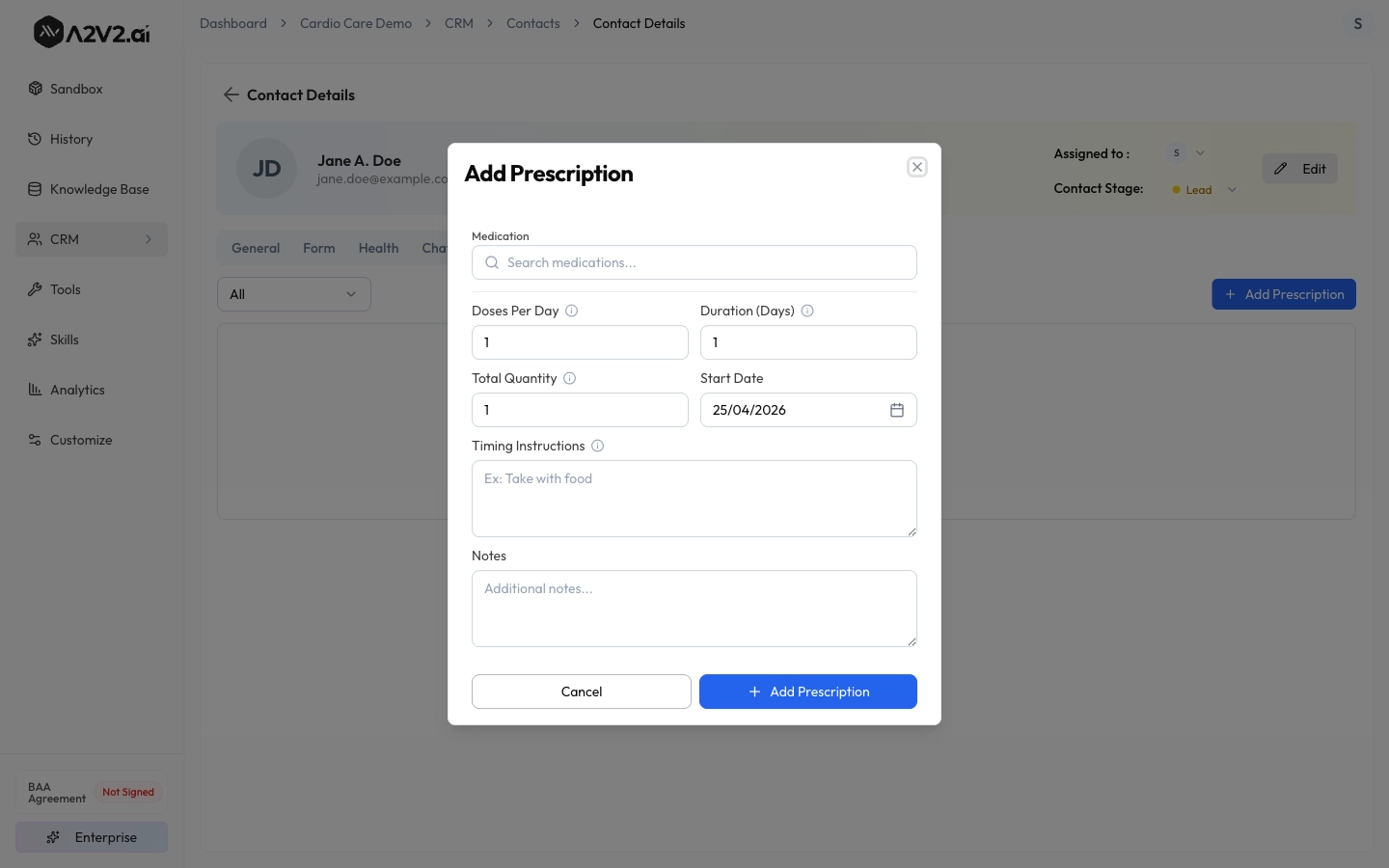
Add Prescription dialog
Per-Field CRM Encryption (Medical Only)
Medical Agents can mark individual CRM fields as encrypted. The CRM, then Fields screen has an extra Encrypted column that is hidden for General Agents.
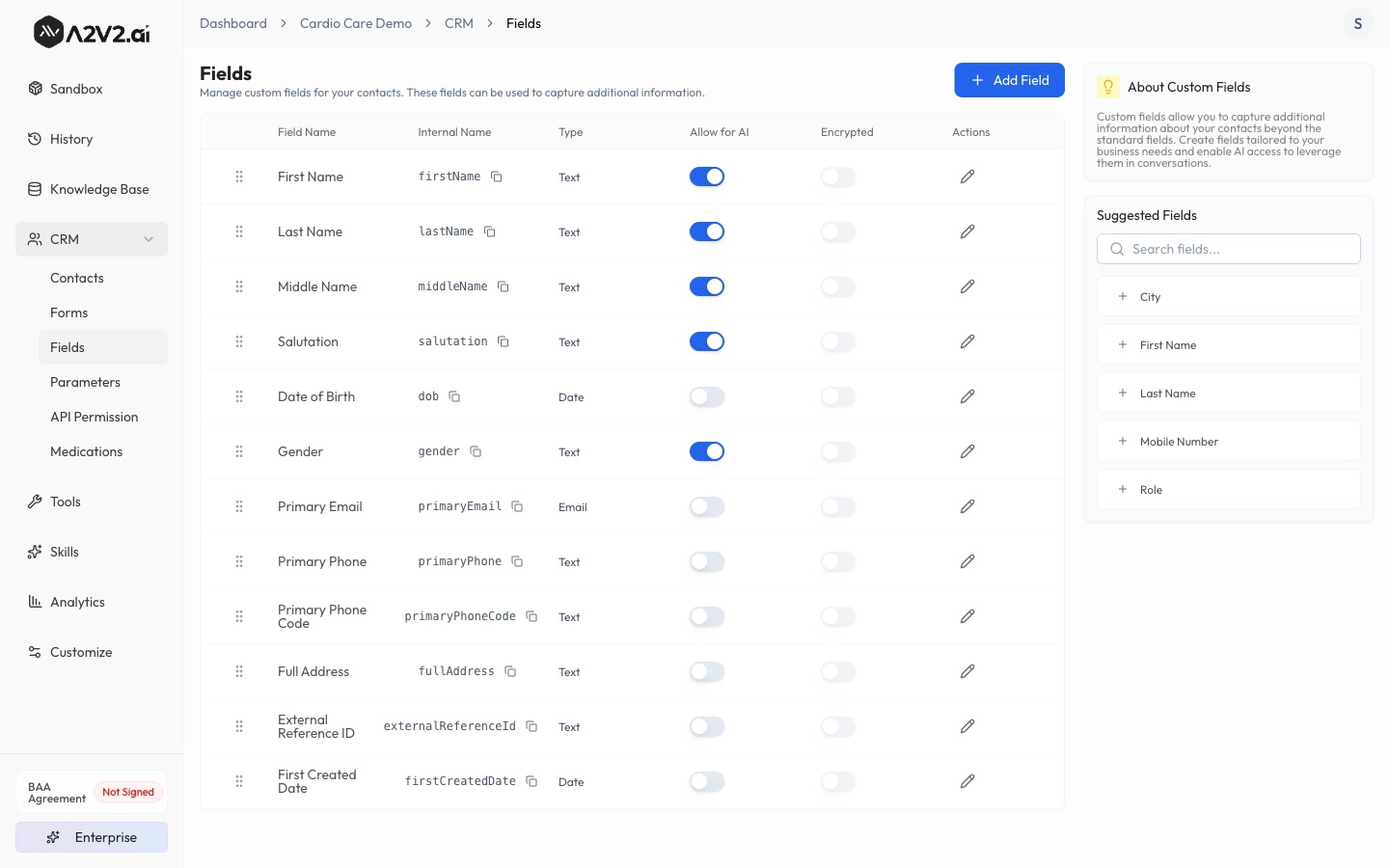
CRM — Fields with the Encrypted column
You can also enable encryption form-wide in the Form Builder. Every field on that form will be encrypted at rest. Look for the lock icon and the Encrypt form data toggle when creating or editing a form.
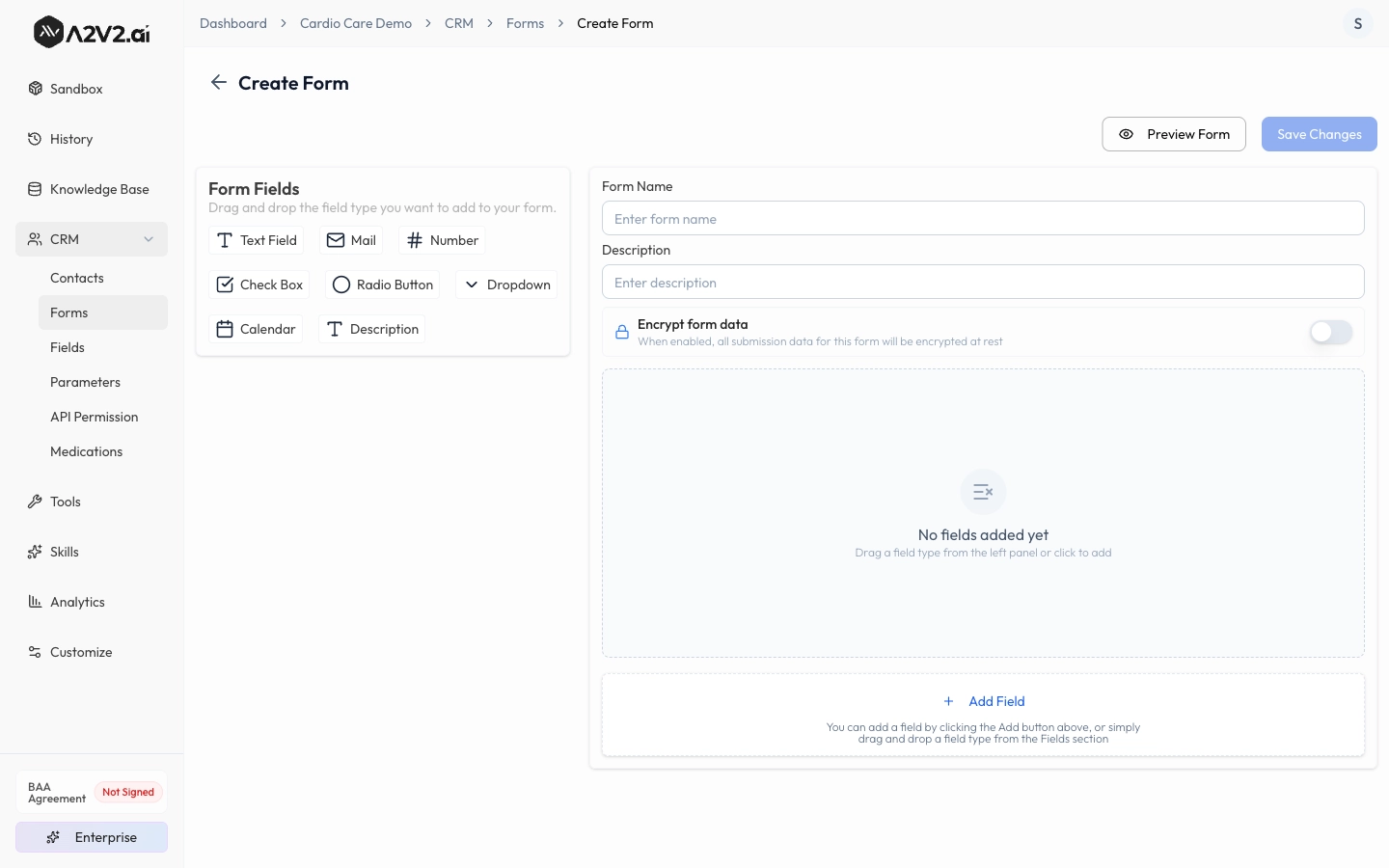
Form Builder — Encrypt form data toggle
A few important notes on encryption:
- Encryption is per field (or per form), not all-or-nothing. You choose exactly which fields hold sensitive data.
- Encryption is permanent. Once you enable it on a field, you can not disable it again. The platform will show you a confirmation dialog the first time.
- Encrypted values are decrypted on demand for authenticated users in your org. Your team continues to see the values normally. The encryption is at the storage layer.
- Existing CRM data flagged as critical is migrated and encrypted automatically when you adopt Medical.
- Any field can be encrypted. Common picks are date of birth, SSN/national ID, diagnosis codes, free-text clinical notes, and any contact identifier tied to PHI, but the choice is yours field by field.
Choosing a Language Model
Medical Agents are restricted to a curated list of HIPAA-eligible models. When you open the model picker in Sandbox or chatbot settings, you will see only the eligible options, each marked with a HIPAA badge. We update this list as more eligible models become available. New options will appear in your picker automatically.
General Agents are unaffected. You can still pick from the full model catalog there.
See the April 2026 Model Catalog Update for the full current HIPAA-eligible lineup.
What Changed for Existing Chatbots
Nothing you need to do. Every chatbot you created before this update has been automatically classified as General. None of the Medical-only features (BAA gate, encryption toggle, Parameters/Medications nav, HIPAA model filter) appear on your existing chatbots. Your operators will not notice anything different in the agents they already use.
If you want to convert an existing General chatbot into a Medical one, please reach out. There is not a self-service promote to Medical path in the dashboard today.
Read more: Introducing Medical Agents and HIPAA-compliant AI.